







Menu Icon
  • CHI
  • First Time Login & Activate Security Authentication Service
  • Login Mobile Banking Service
  • Credit Cards Services
  • Account Enquiry and Fund Transfer
  • Using Push Notification for BCM Net Login or Instruction Authorization
  • Using Push Notification for Online Credit Card Transaction Authorization
CHI
Using Push Notification for Online Credit Card Transaction Authorization
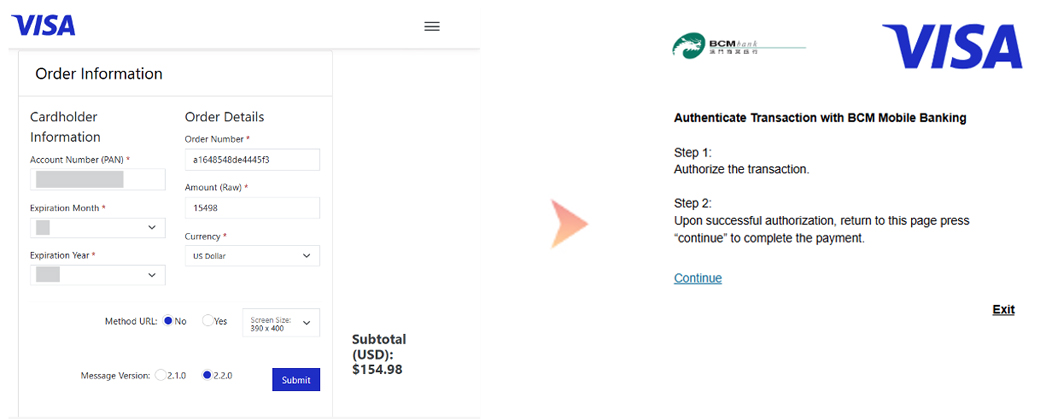
1. After entering the correct card details on the merchant online payment site, you will be directed to the BCM Mobile Banking page for transaction authentication.

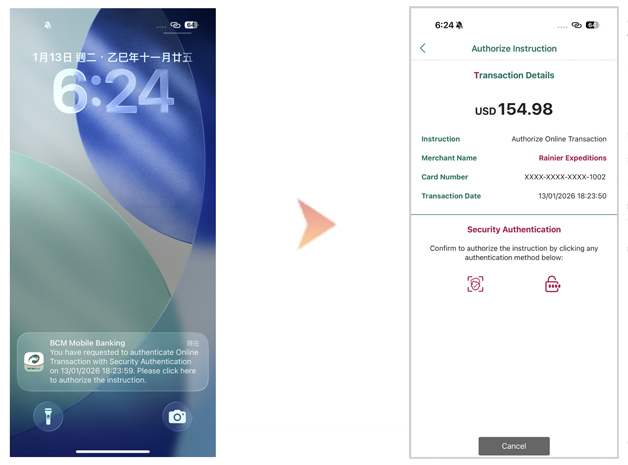
2A. Your mobile device will then receive a Push Notification Message from BCM Mobile Banking App.

2B. Please click the push notification for the authentication process. Once you log in BCM Mobile Banking App, you will be prompted to the transaction details page that indicates an online transaction is being authorized.
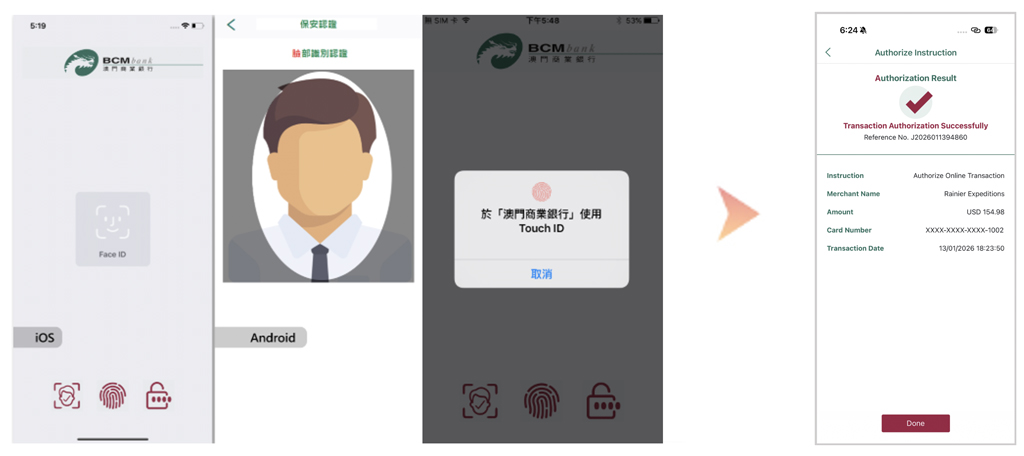
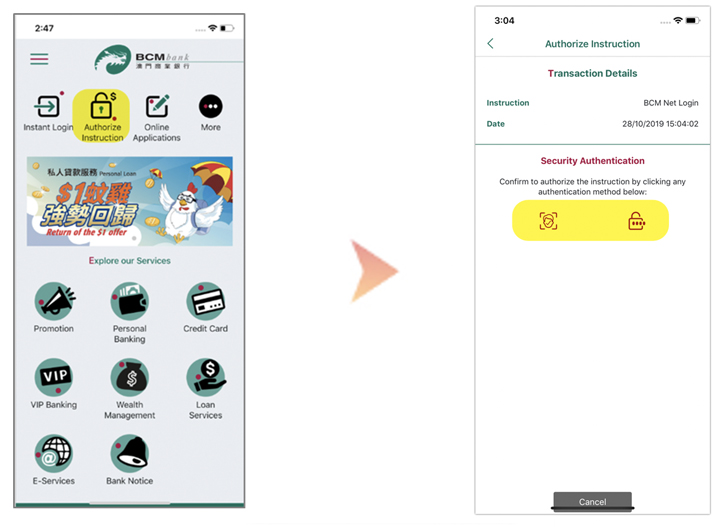
3. Confirm the instruction authorization with any of the authentication methods shown on your mobile device. Authorization Result will be displayed upon successful authentication. Click “Done” to return to authentication page.
4. In case you have missed the prompted Push Notification, you may also access the Instruction Authorization directly by opening the BCM Mobile Banking App and clicking the menu icon “Authorize Instruction” to view the transaction details. Each Push Notification is only valid for 100 seconds. When the authorization instruction times out, please re-authenticate the online credit card transaction.