1. UnionPay QR Code Withdrawal
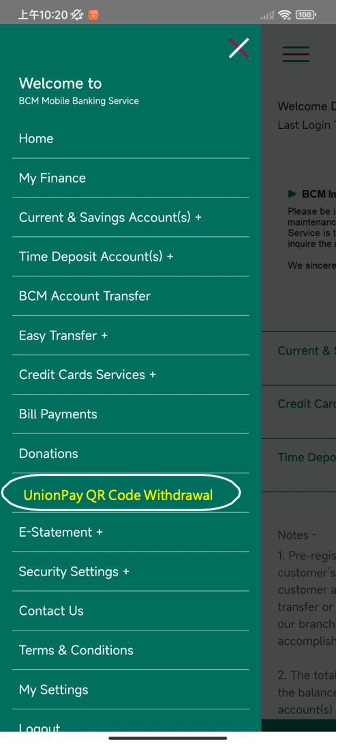
Upon customer login to BCM Mobile Banking Service, select “UnionPay QR Code Withdrawal” on the menu.
1. UnionPay QR Code Withdrawal
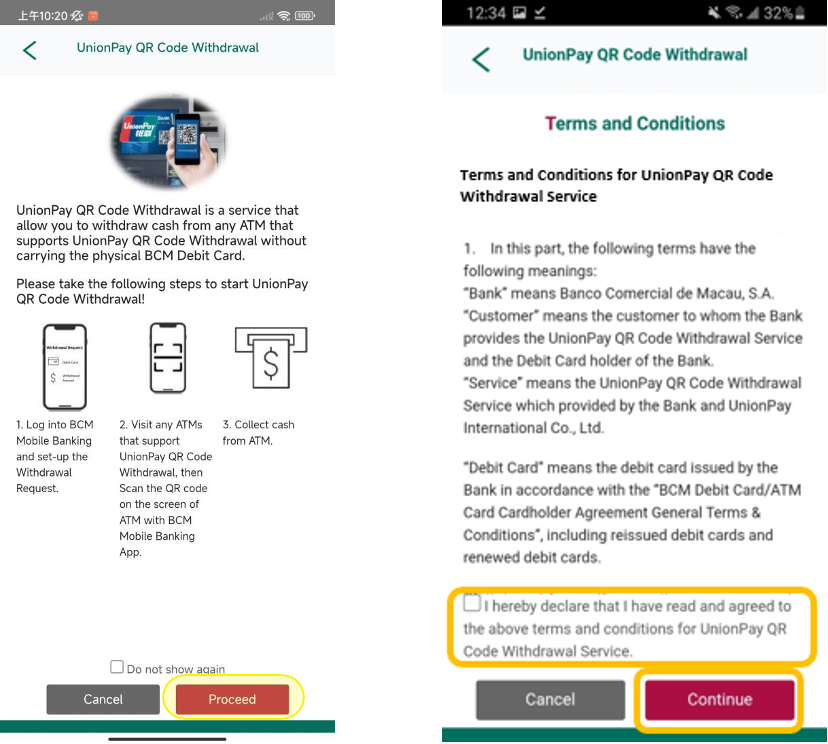
Read and confirm the operating instructions and the Terms and Conditions, then press “Continue”.
2. Setup Withdrawal Request
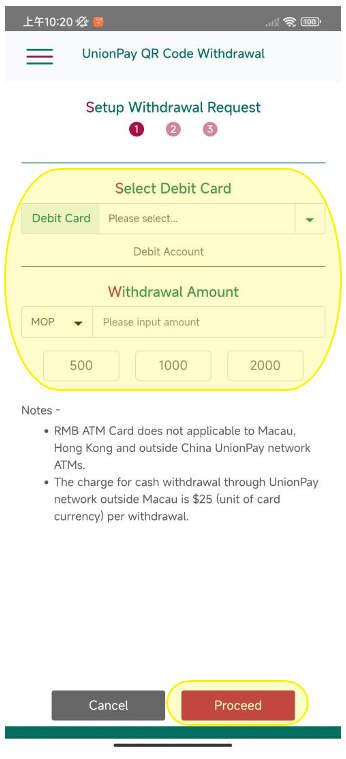
Select Debit Card, input Withdrawal Amount and select Currency, then press “Proceed”.
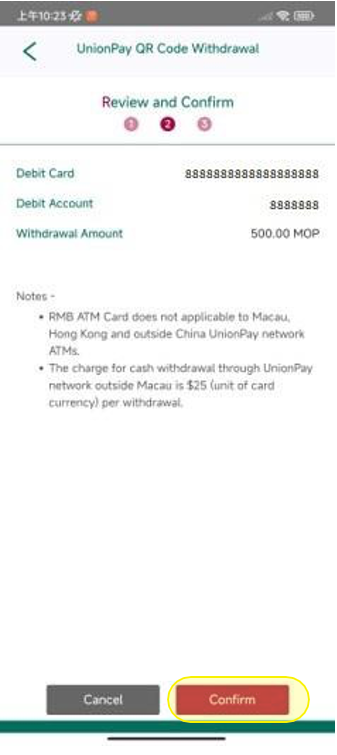
3. Review and Confirm
Review the withdrawal request, then press “Confirm”.
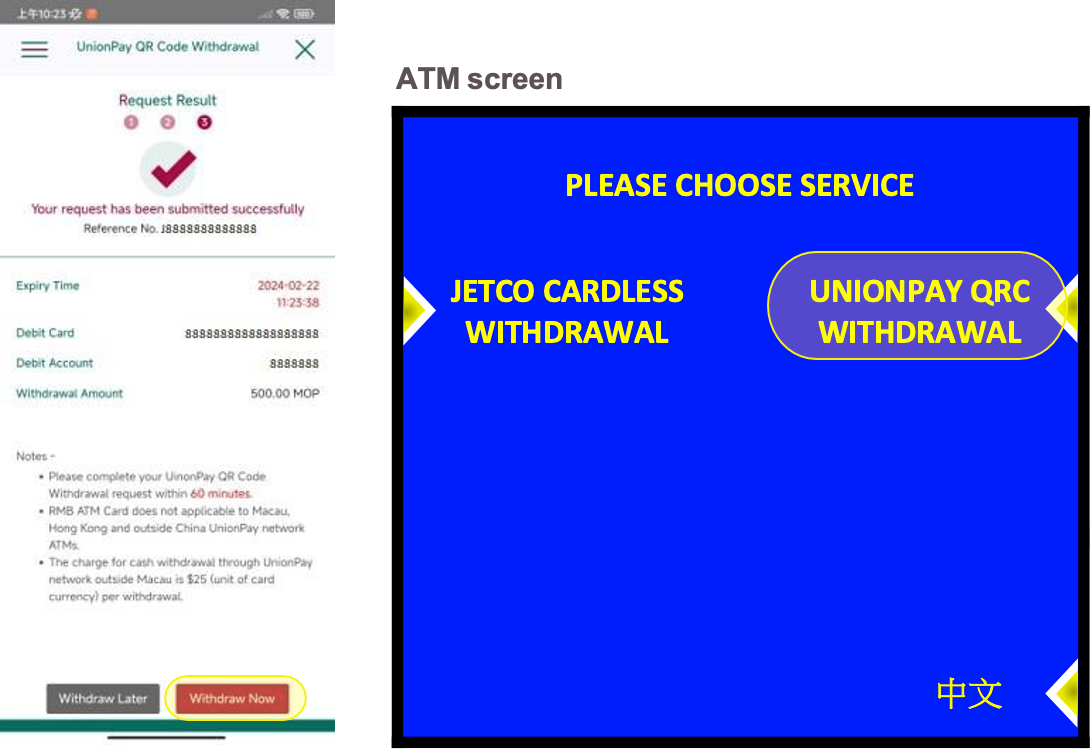
4.1 Request Result - Withdraw Now
Press “Withdraw Now” while selecting UnionPay QRC Withdrawal button on the ATM that supports the service.
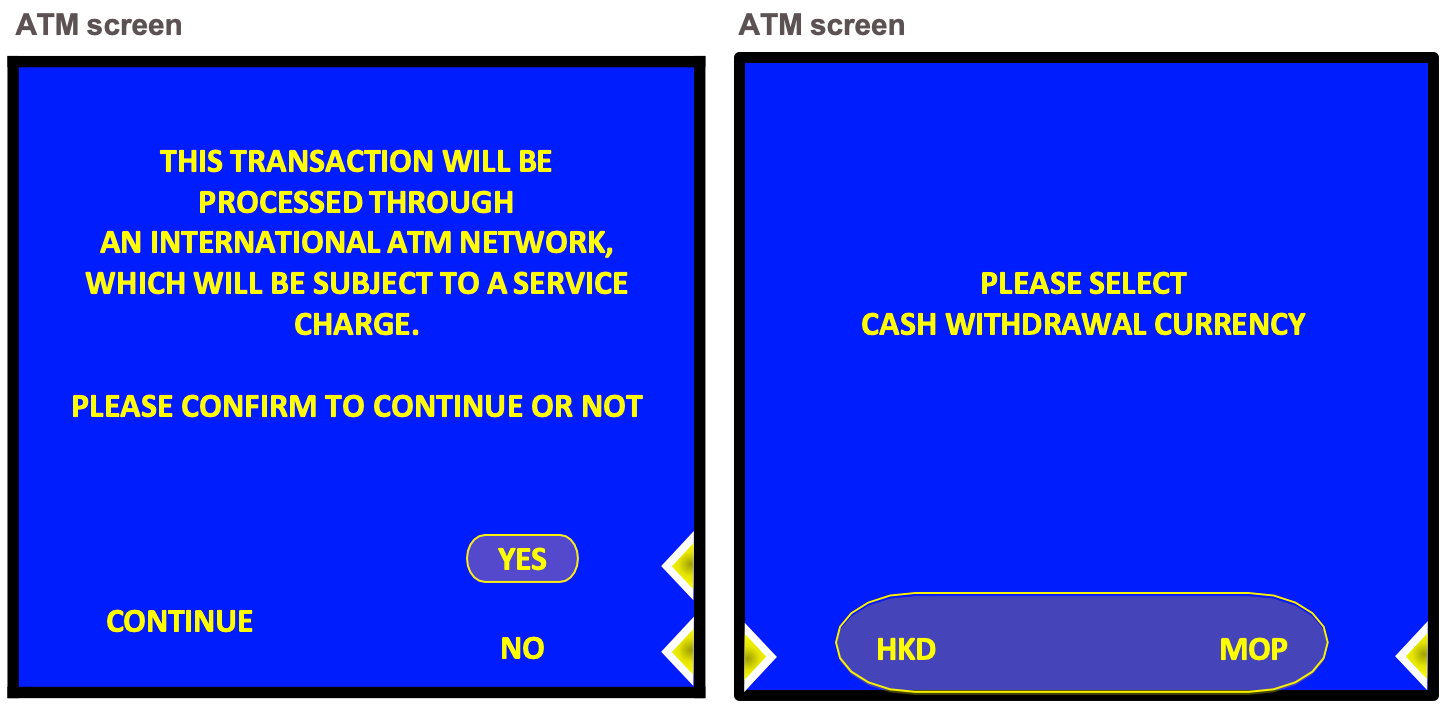
4.1 Request Result - Withdraw Now
Confirm the information shown on the ATM’s screen, and select the same currency as the withdrawal request.
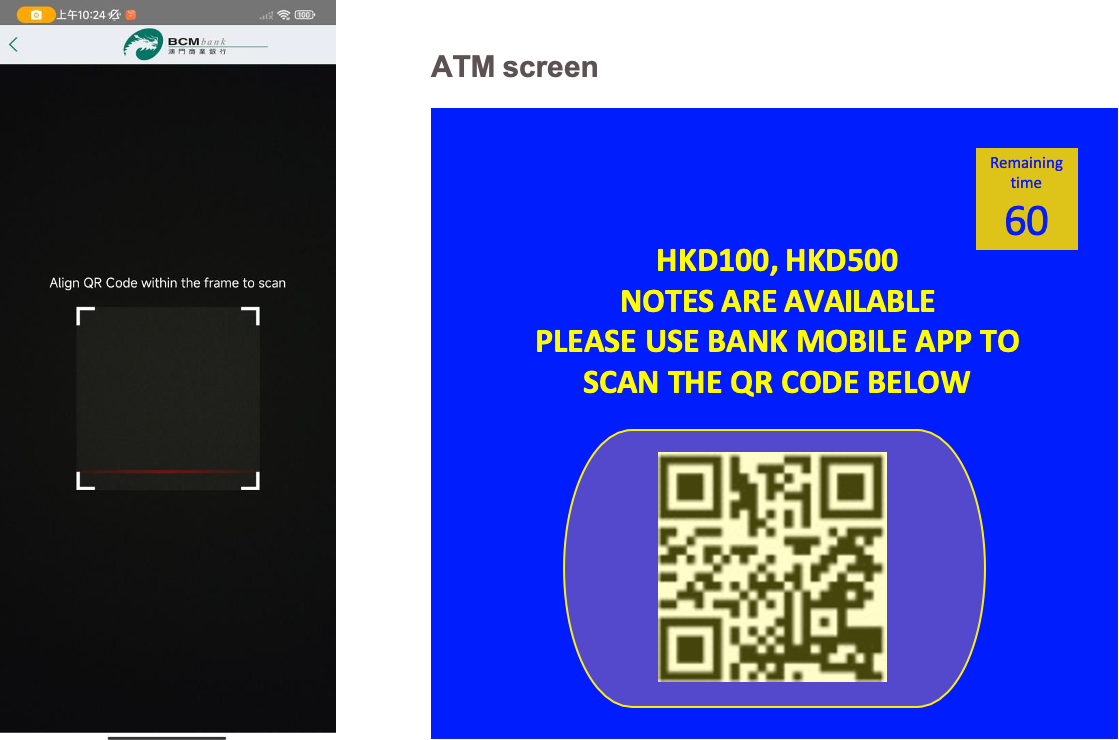
4.1 Request Result - Withdraw Now
Scan the QR code on the ATM’s screen within 60 seconds.
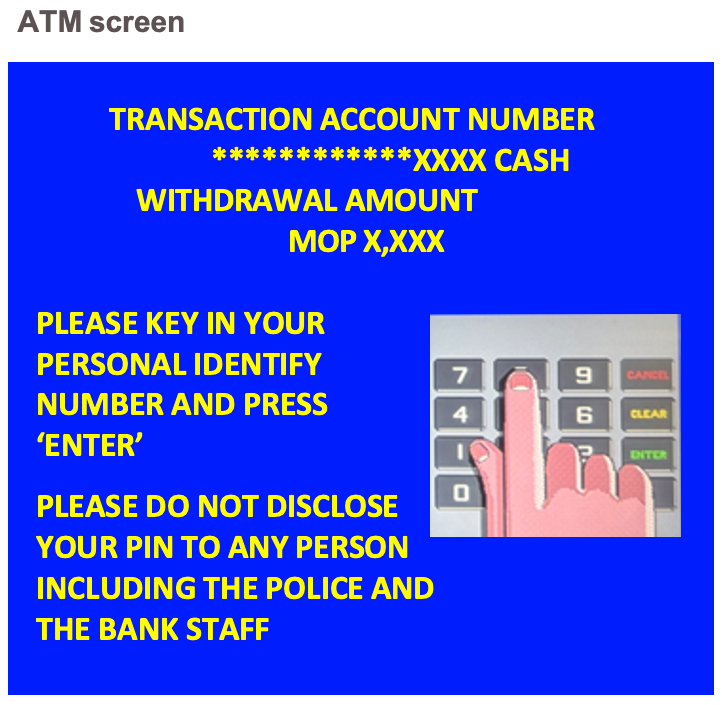
4.1 Complete Transaction
Follow the steps shown on the ATM’s screen, enter the debit card’s PIN, withdraw the requested amount and complete the transaction.
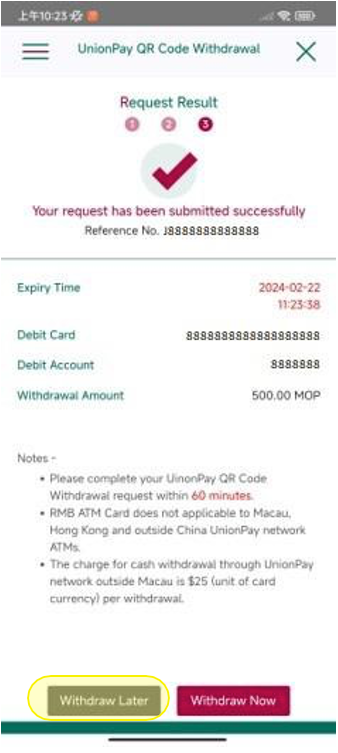
4.2 Request Result - Withdraw Later
Press “Withdraw Later”, to keep the withdrawal request for 60 minutes, and process the
withdrawal later.
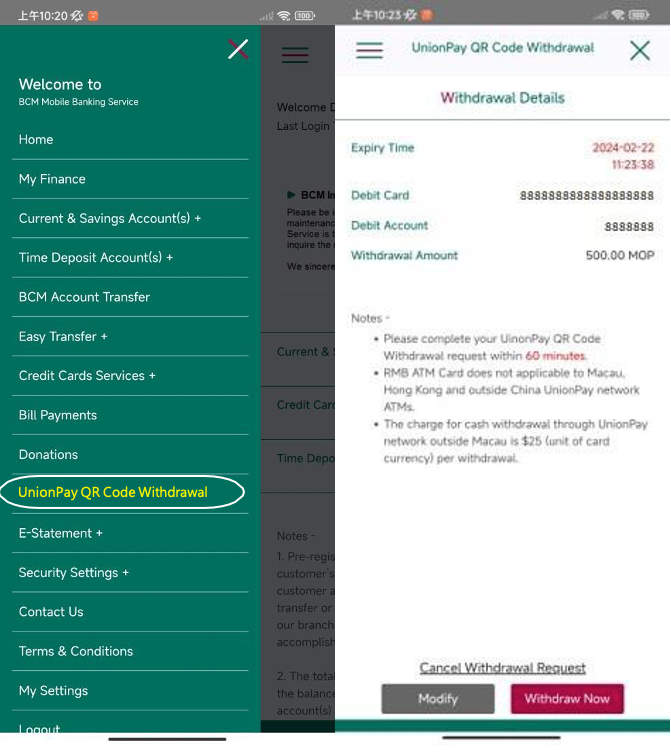
4.2 Withdraw Later
Select “UnionPay QR Code Withdrawal” to retrieve the withdrawal request record.
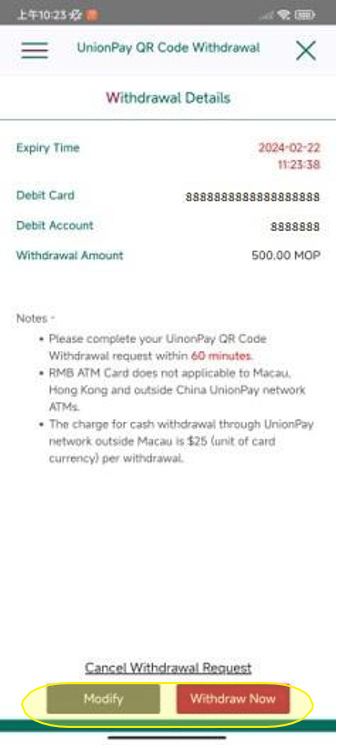
4.2 Withdraw Later
A. Press “Withdraw Now”, while selecting UnionPay QRC Withdrawal button on the ATM that supports the service, follow the steps to complete the transaction. OR;
B.
Press “Modify”, go back to “Setup Withdrawal Request” and modify the withdrawal request.
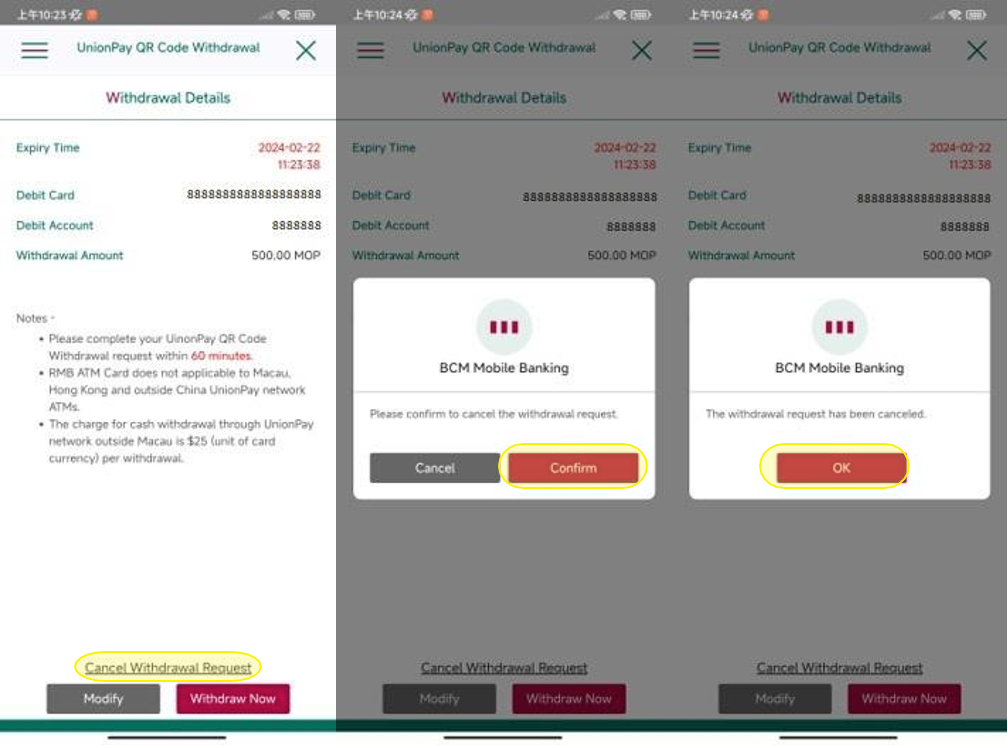
5. Cancel Withdrawal Request
Press “Cancel Withdrawal Request” to cancel the withdrawal request.