Menu Icon
  • ENG
  • First time Login & Activate (For Approver)
  • Login in BCM eCorp Mobile Banking Service
  • Account Overview & Enquiry / Inward Remittance Enquiry
  • Login using push notification and transaction approval
中文
A. First time Login & Activate (For Approver)
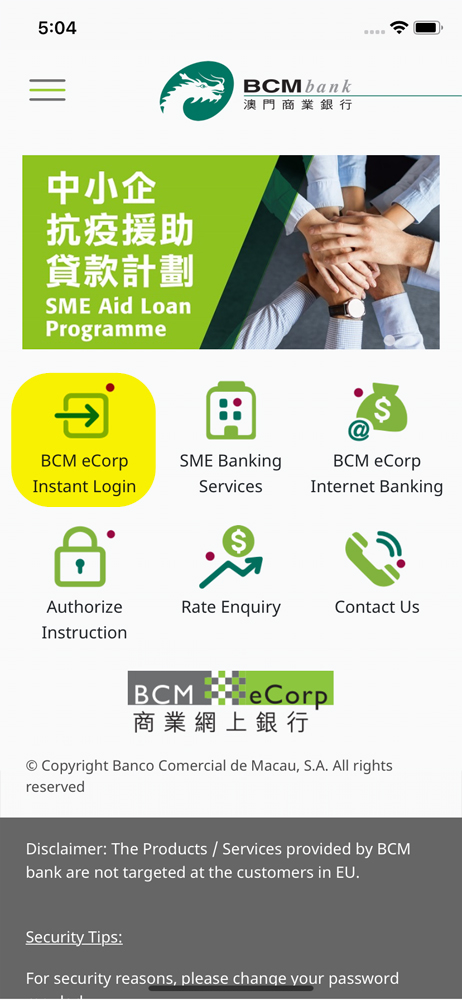
1. Open BCM eCorp App and click “BCM eCorp Instant Login” icon to access the login page
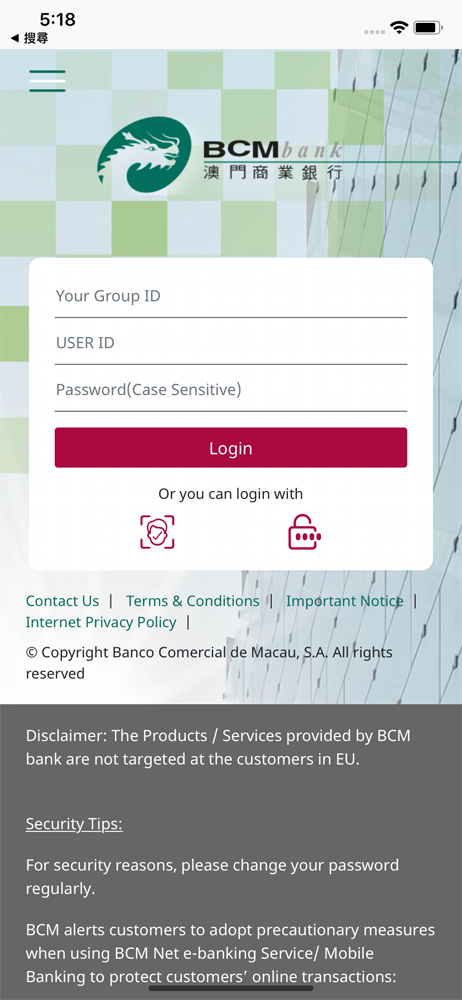
2. Please fill in your BCM eCorp Group ID,User ID and Password to login BCM eCorp Banking Service
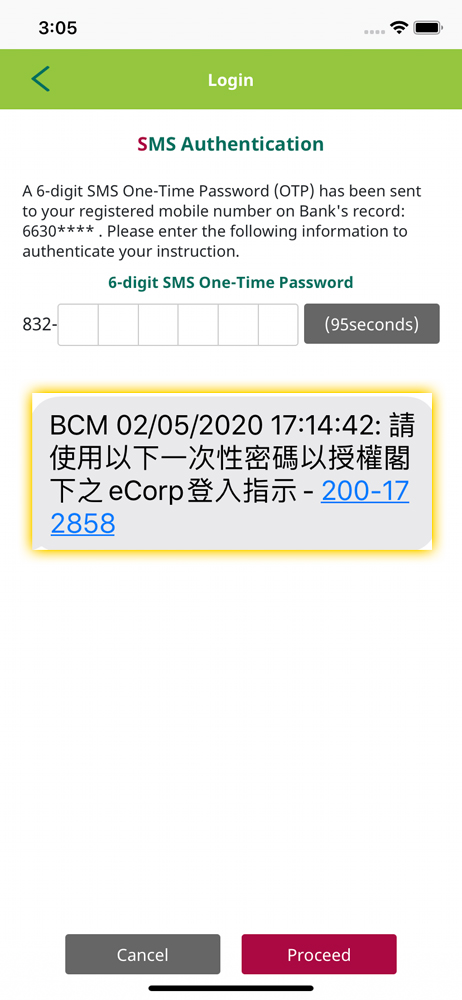
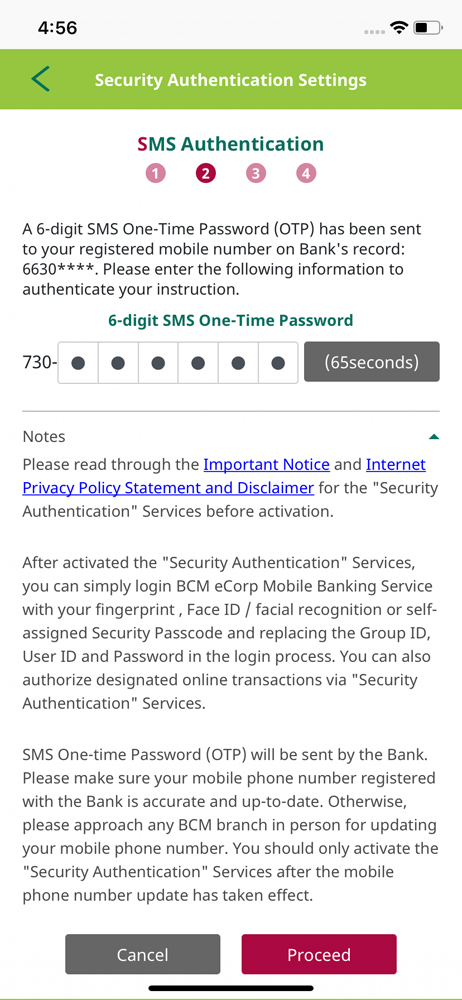
3. The Bank will send a SMS One-Time Password (OTP) to your registered mobile number on Bank’s record to authenticate this instruction. Please enter the OTP on the screen and then click “Proceed”.
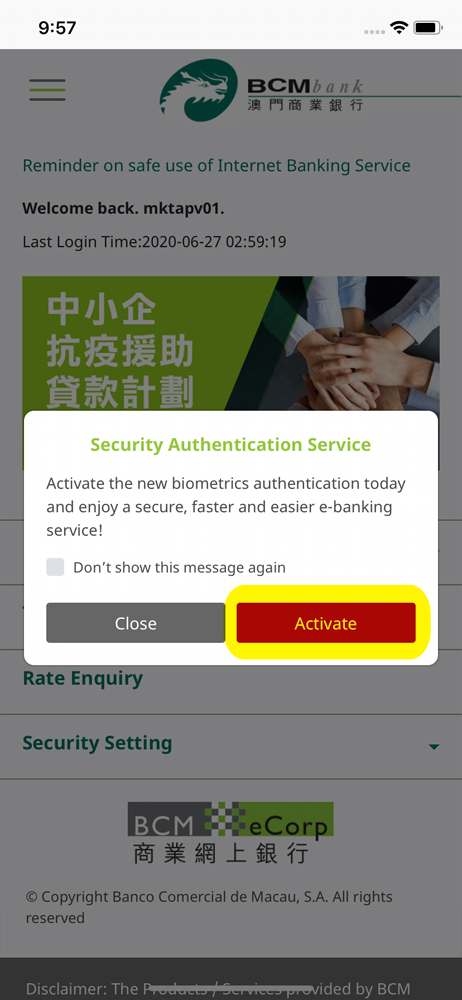
4. You could click “Activate” to activate Security Authentication Service, or press the menu button on the upper left corner to select “Security Setting” – “Security Authentication Settings” for activation.
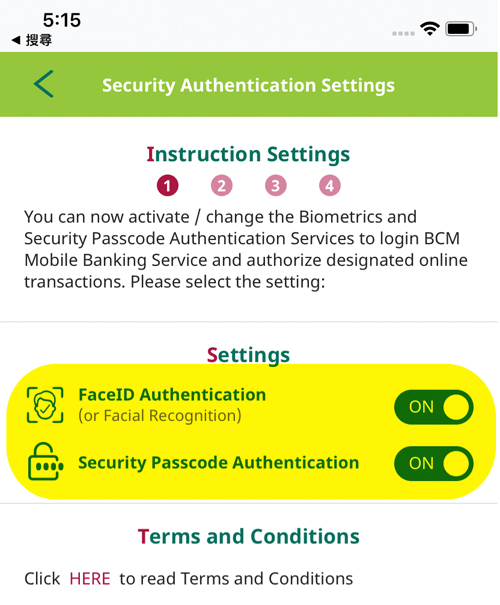
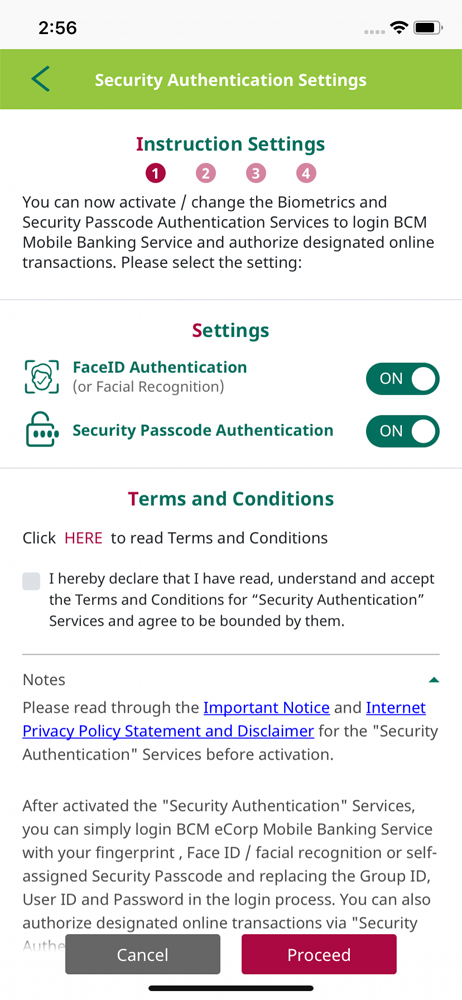
5. According to your mobile device and follow the instruction on-screen, please select one or more authentication method(s) on the setting list for activation:
    • Touch ID / Fingerprint authentication
    • Face ID / Facial recognition authentication
    • Security Passcode authentication (default as activate)

Before confirming to “Proceed” button, please read through and accept the Terms & Conditions for BCM Security Authentication Service.


6. The Bank will send a SMS One-Time Password (OTP) to your registered mobile number on Bank’s record to authenticate this instruction. Please enter the OTP on the screen and then click “Proceed”.
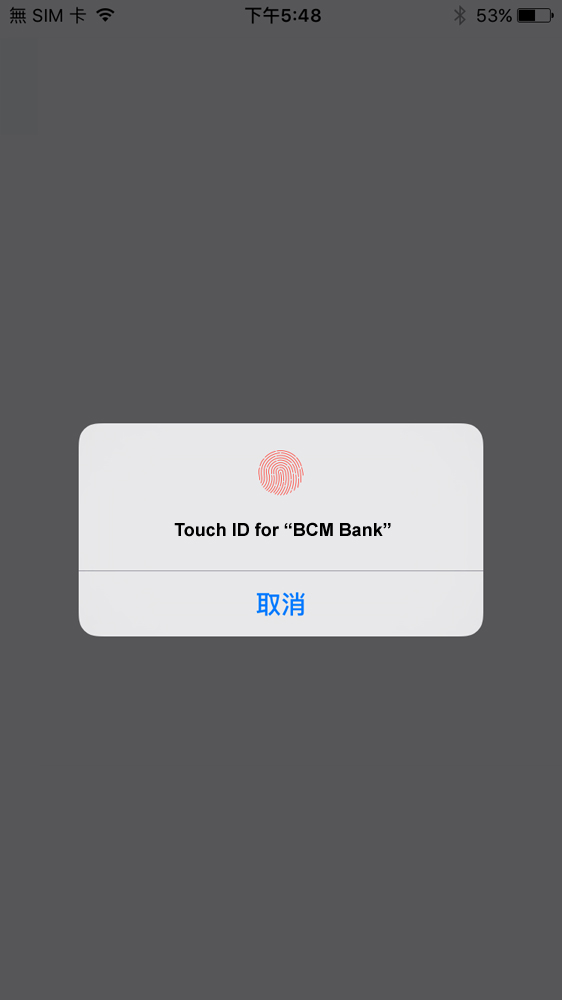
7. If you wish to activate the fingerprint authentication, please touch the fingerprint sensor on your device to verify your fingerprint;
Remarks: the methods of authentication may vary according to the supported model(s) of the mobile device
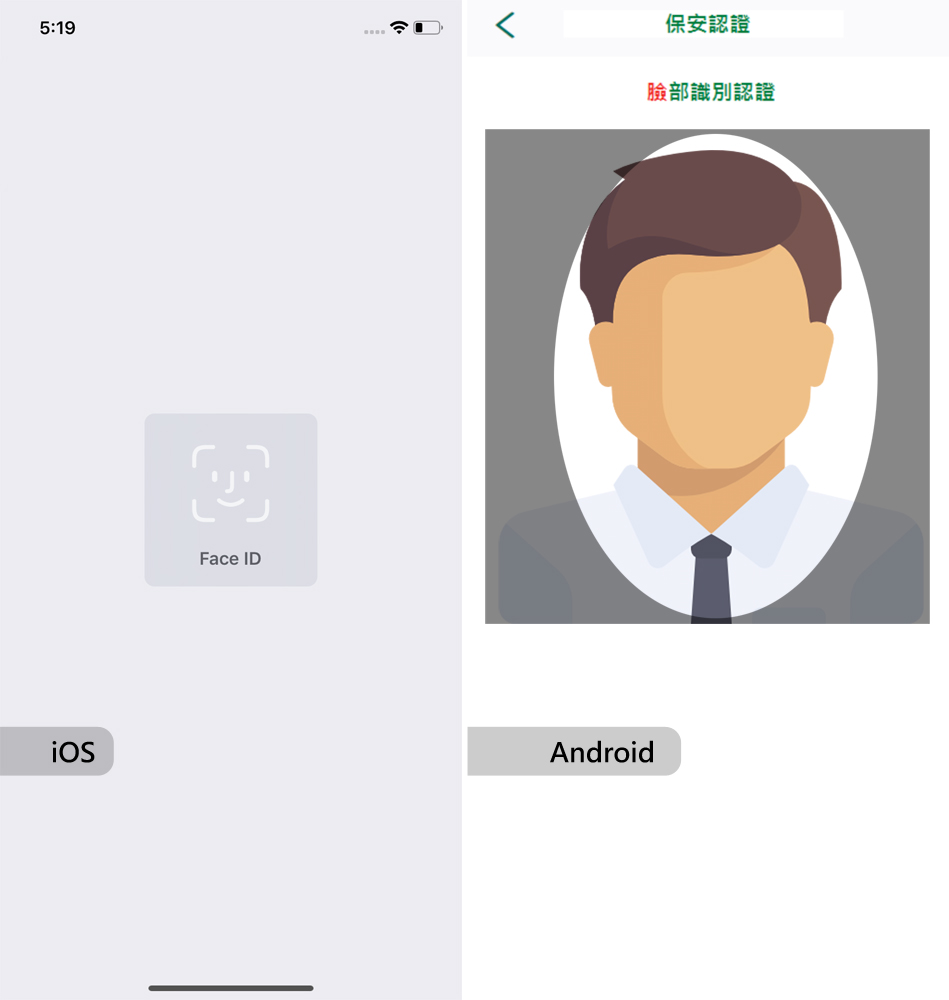
8. If you wish to activate the facial authentication, please follow the on-screen instruction according to your mobile device and verify your Face ID/facial recognition process;
Remarks: the methods of authentication will vary according to the supported model(s) of the mobile device
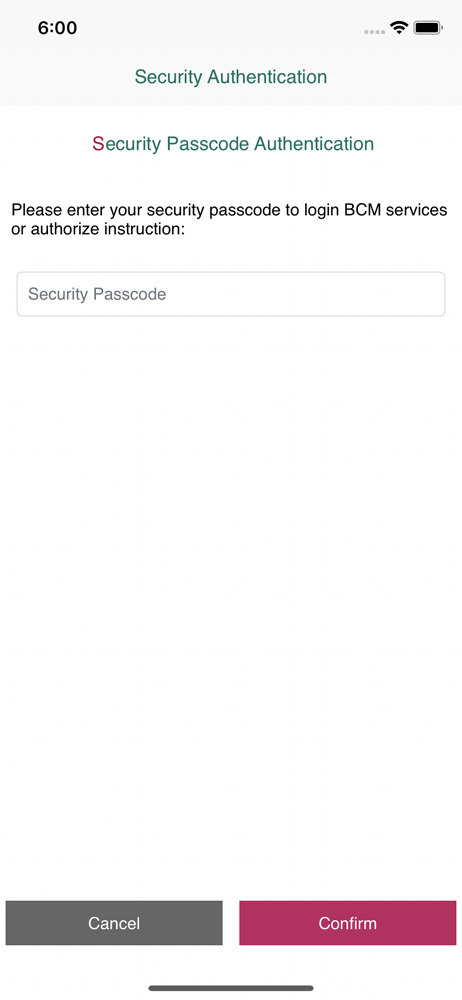
9. For the setup of Security Passcode, please enter a self-assigned password that must be between 8-15 characters of alphabets (Case sensitive) and numbers to be the Security Passcode and then click the “Confirm” button to confirm the activation.
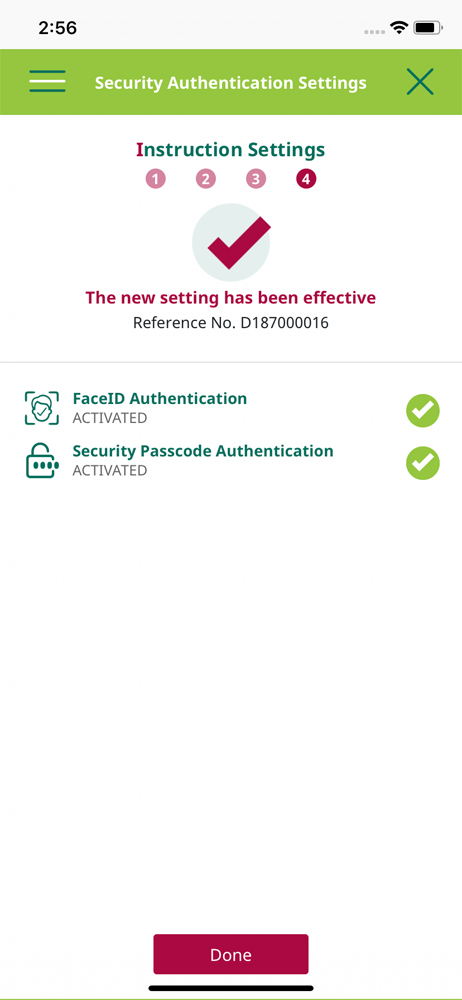
10. Activation is successful! You may now use the Security Authentication Service to login BCM e-Corp App and Banking Service, and approve your transactions.
11. You can enquire or change your Security Authentication Settings anytime by selecting the function of “Security Settings”-> “Security Authentication Settings” on the left menu.