



Menu Icon
  • ENG
  • First time Login & Activate (For Approver)
  • Login in BCM eCorp Mobile Banking Service
  • Account Overview & Enquiry / Inward Remittance Enquiry
  • Login using push notification and transaction approval
中文
Login using push notification and transaction approval
Login using push notification

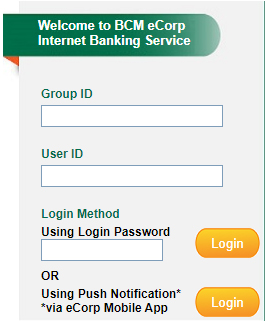
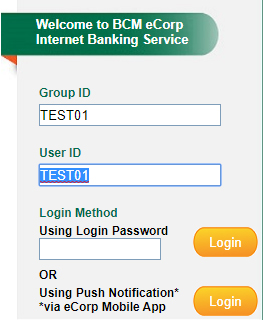
1. While logging in BCM eCorp Internet Banking Service, please fill in your Group ID and User ID , then select your login method with Password or by Using Push Notification via eCorp Mobile App.
Login using push notification

2. Please fill in your Password and click login to proceed
Login using push notification

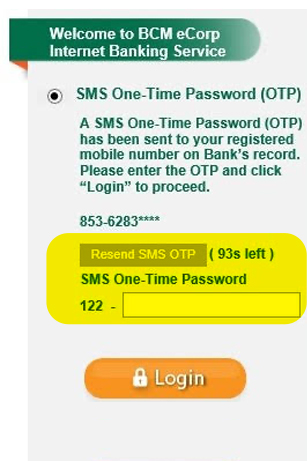
3. While logging in with password, the Bank will send a SMS One-Time Password (OTP) to your registered mobile number on Bank’s record to authenticate this instruction
Login using push notification

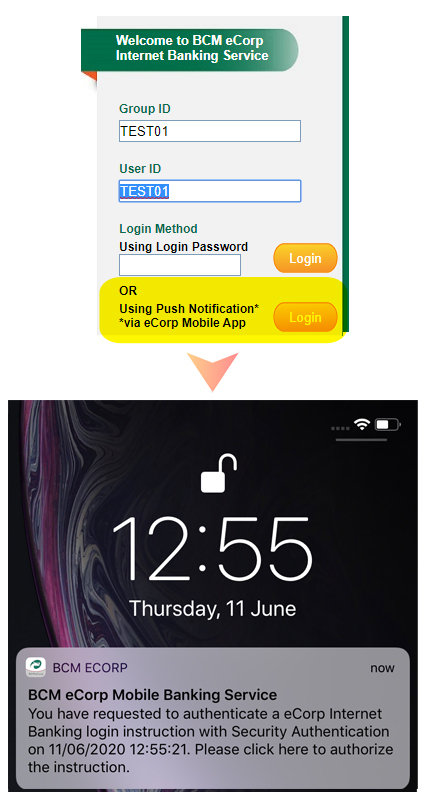
4. If you login with push notification via BCM eCorp Mobile App, please click the login button next to “Using Push Notification via eCorp Mobile App”

A. Your mobile device will receive a Push Notification Message from BCM eCorp App
Login using push notification

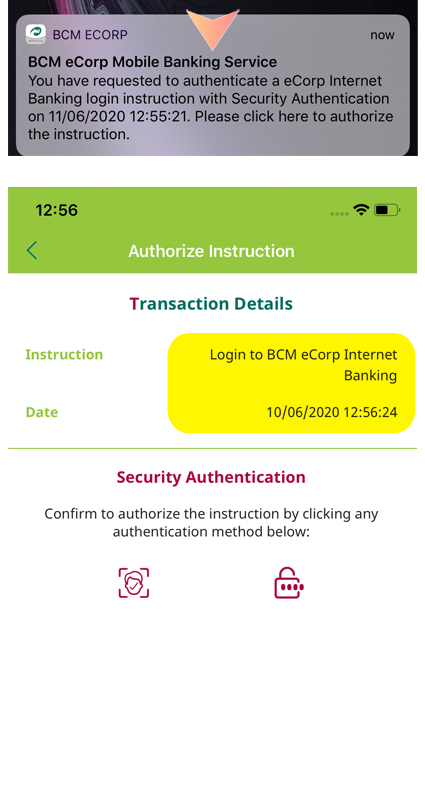
B. Please click the push notification to start the authorization process. The screen will show the details of this push notification

C. Please verify the login details and confirm the instruction authorization process. The screen will show the details of this push notification

D. Upon successful authentication, you will automatically login to BCM eCorp Internet Banking Service and will be directed to the welcome page.
Login using push notification

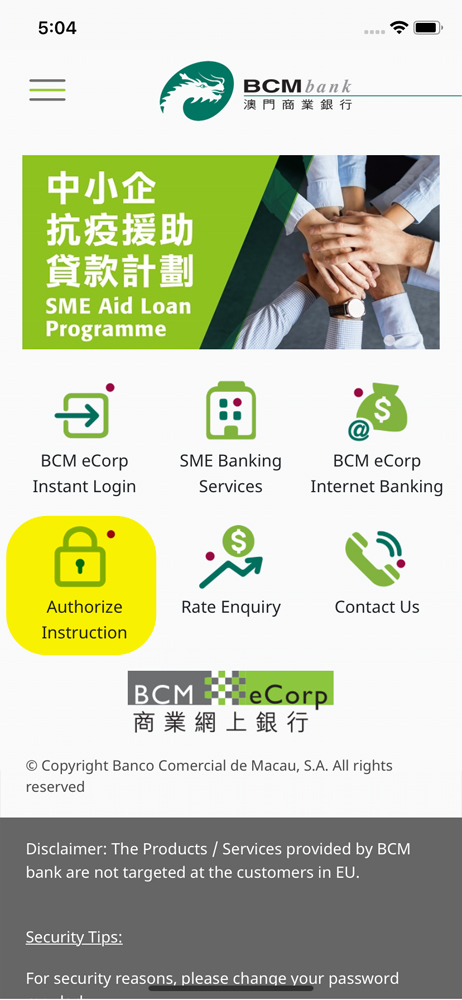
E. In case you have missed the push notification message, you can also access the instruction authorization directly by opening the BCM eCorp Mobile App and click on the menu icon “Authorize Instruction” to view the details
Transaction approval

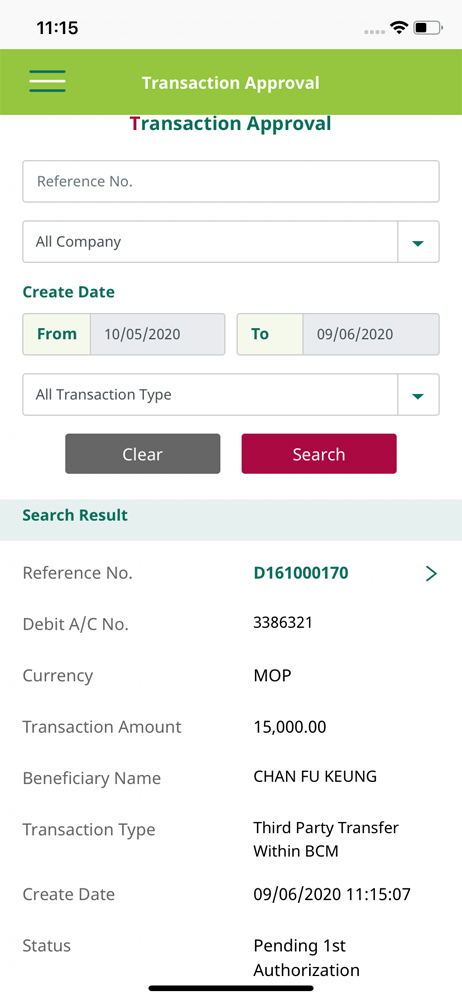
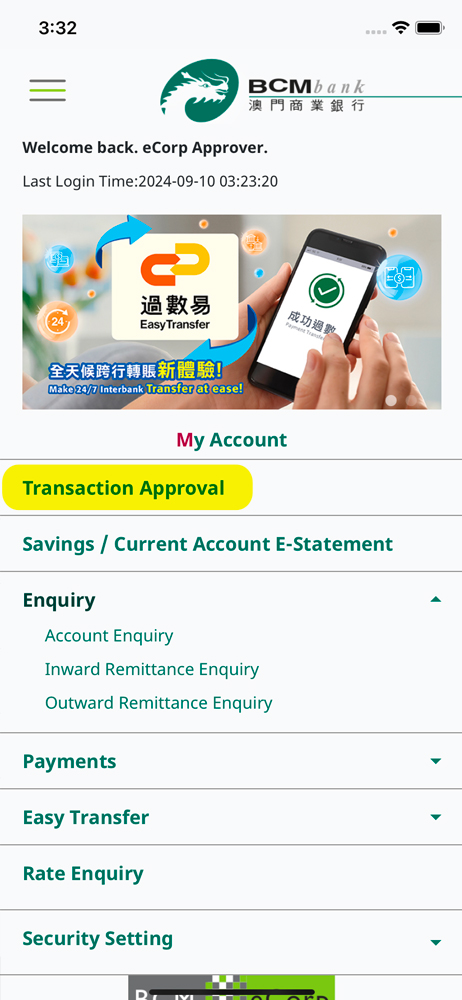
1. Click on Transaction Approval on the Welcome page
Transaction approval

2. You can enquire any pending transaction approval or record for up to 12-months history
Transaction approval

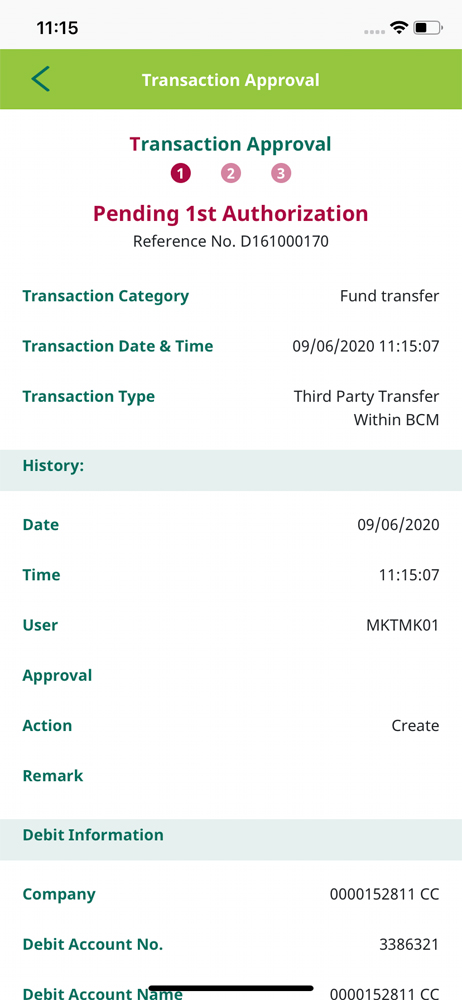
3. Click on the record to view more details
Transaction approval

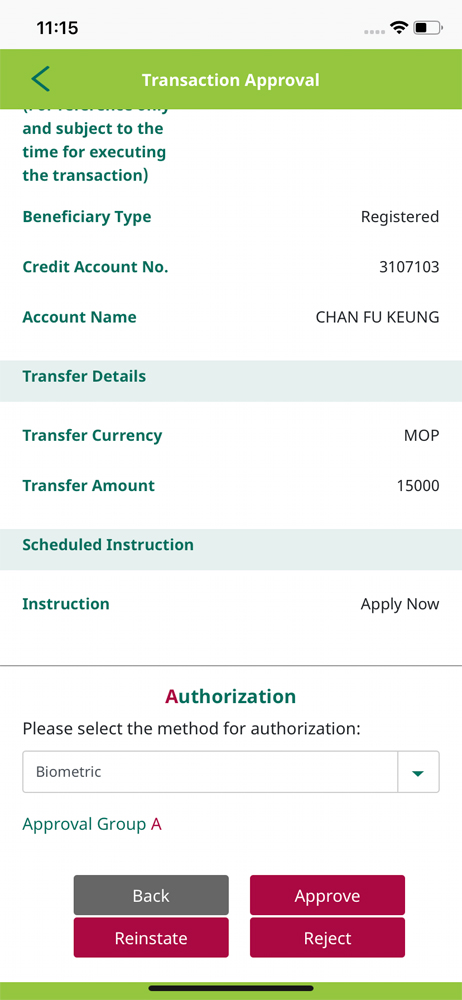
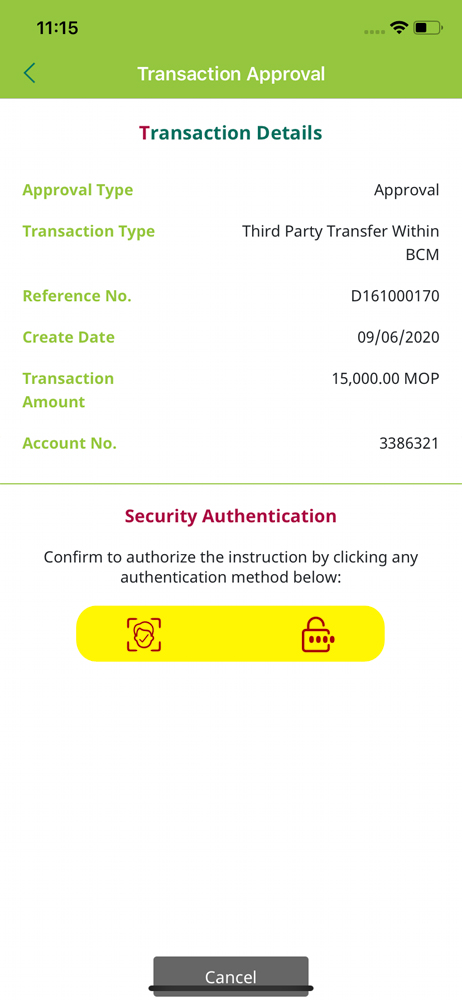
4. Approver can scroll down to the bottom of the page to authorize pending transactions
Transaction approval

5. Selected your registered authentication method to authorize
Transaction approval

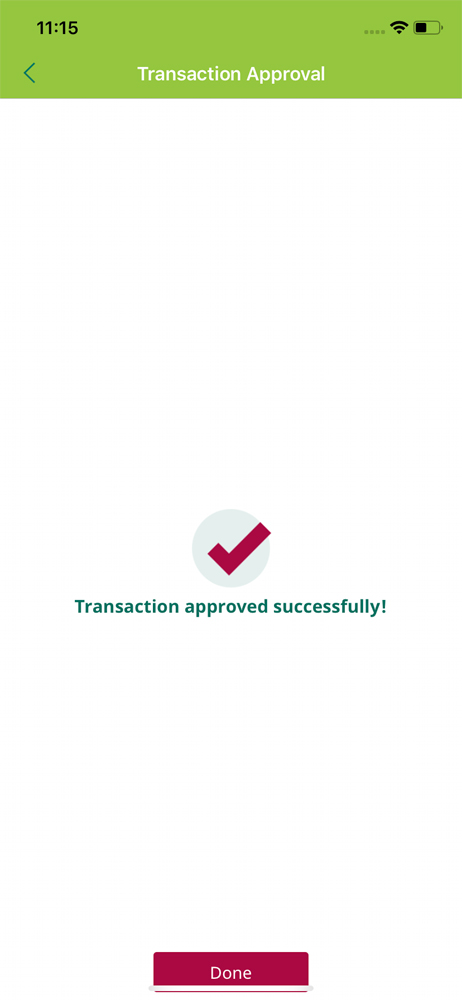
6. Transaction approved successfully